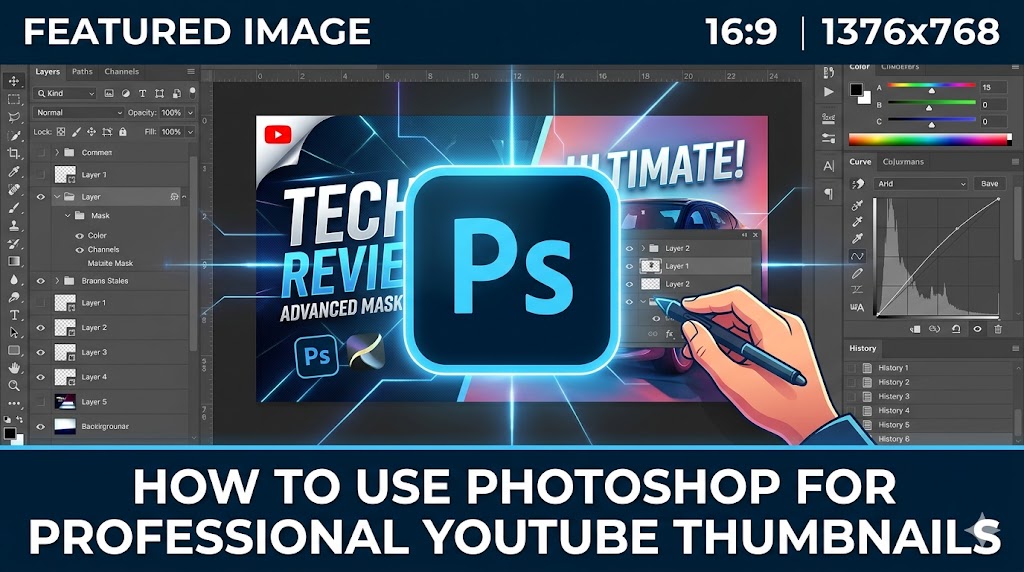
A powerful thumbnail can determine whether viewers click your video or scroll past it. That is why mastering a photoshop youtube thumbnail tutorial is essential for creators who want to grow on YouTube. Professional thumbnails help videos stand out, improve click-through rates, and strengthen your brand identity. With Adobe Photoshop, you gain complete control over colors, text, effects, and layouts that make thumbnails look polished and highly clickable.
In this detailed photoshop youtube thumbnail tutorial, you will learn how to create eye-catching thumbnails from scratch, choose the perfect youtube thumbnail background, add professional text effects, and use advanced editing techniques that successful creators rely on. Whether you are a beginner or an experienced designer, this guide will help you improve your overall youtube thumbnail design.
Why Photoshop Is the Best YouTube Thumbnail Maker
Many creators use Canva or browser-based editors, but Photoshop remains one of the most powerful tools for thumbnail creation. A complete photoshop youtube thumbnail tutorial teaches you how to build custom graphics without design limitations.
Photoshop gives creators:
- Advanced layer editing tools
- Professional typography controls
- High-quality masking and cutouts
- Precise color correction
- Custom effects and blending modes
- Complete creative freedom
Unlike basic online tools, Photoshop allows you to create fully customized thumbnails that look unique and professional.
Getting Started With Photoshop YouTube Thumbnail Tutorial
Create the Correct Canvas Size
The first step in any photoshop youtube thumbnail tutorial is setting up the proper canvas dimensions. YouTube recommends a thumbnail size of 1280 x 720 pixels with a 16:9 aspect ratio.
To create your canvas:
- Open Photoshop
- Click “Create New”
- Set width to 1280 pixels
- Set height to 720 pixels
- Choose RGB color mode
- Select 72 DPI resolution
Tip: Save your thumbnail template as a PSD file so you can reuse layouts and branding elements for future videos.
Choose a Strong YouTube Thumbnail Background
A strong youtube thumbnail background plays a major role in attracting attention. In every effective photoshop youtube thumbnail tutorial, the background is designed to support the main subject without creating distractions.
You can use:
- Blurred gaming screenshots
- Color gradients
- Studio photos
- High-contrast textures
- Darkened cinematic scenes
Backgrounds should complement the text and subject while maintaining visual clarity.
YouTube Thumbnail Design Essentials in Photoshop
Use High-Quality Images
Low-resolution images can make thumbnails appear unprofessional. A proper photoshop youtube thumbnail tutorial always emphasizes using high-quality images with sharp details and clean edges.
For best results:
- Use HD screenshots
- Capture clear facial expressions
- Avoid pixelated graphics
- Use PNG cutouts for transparency
Remove Backgrounds Professionally
Photoshop’s Select Subject and Remove Background tools help isolate people and objects quickly. This technique improves focus and creates cleaner youtube thumbnail design.
After removing the background:
- Add shadows behind subjects
- Create glow effects
- Use outer strokes for separation
- Blend foreground elements naturally
Add Bold Thumbnail Text
Text is one of the most important parts of any photoshop youtube thumbnail tutorial. Strong typography makes thumbnails easier to understand instantly.
Popular fonts include:
- Anton
- Bebas Neue
- Montserrat Extra Bold
- Impact
- League Spartan
Use short phrases like:
- “BIG MISTAKE”
- “BEST SETTINGS”
- “DON’T BUY THIS”
- “SECRET METHOD”
Special Attention: Always use large text sizes and strong contrast so viewers can read your thumbnail clearly on mobile devices.
Advanced Photoshop YouTube Thumbnail Tutorial Techniques
Use Layer Styles for Better Text Effects
Professional thumbnails often use advanced layer styles. A complete photoshop youtube thumbnail tutorial includes shadows, outlines, gradients, and glow effects to make text stand out.
Useful layer styles include:
- Drop Shadow
- Outer Glow
- Stroke
- Gradient Overlay
- Bevel and Emboss
These effects help improve readability and increase thumbnail impact.
Apply Color Grading
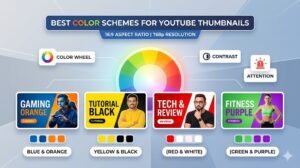
Color grading enhances mood and creates stronger visual consistency. Photoshop adjustment layers such as Curves, Vibrance, and Color Balance help improve the overall look of your youtube thumbnail design.
Popular thumbnail color styles include:
- Orange and teal cinematic tones
- High-saturation gaming colors
- Dark contrast for dramatic videos
- Bright pastel aesthetics for lifestyle channels
Create Depth With Blur Effects
Blur effects help separate the subject from the youtube thumbnail background. In many successful photoshop youtube thumbnail tutorial examples, creators use Gaussian Blur on backgrounds while keeping the main subject sharp.
This technique directs viewer attention toward the focal point.
Using Photoshop as a YouTube Thumbnail Creator
Build a Reusable Thumbnail Template
Professional creators save time by using reusable templates. Photoshop works as a complete youtube thumbnail creator because you can create layered PSD templates for multiple video styles.
Templates usually include:
- Text placeholders
- Brand colors
- Logo placement
- Background overlays
- Adjustment layers
Tip: Keep important design elements within YouTube’s safe viewing area to avoid cropping issues on different devices.
Organize Layers Properly
A structured layer system improves editing speed and workflow. Group text, backgrounds, overlays, and subject layers separately for easier adjustments.
Labeling layers clearly is especially helpful when working on multiple thumbnails regularly.
How ThumbnailGet.com Helps Improve Thumbnail Skills
One of the best ways to improve your design skills is by analyzing successful thumbnails. Many creators use
:contentReference[oaicite:0]{index=0}
to download and study trending YouTube thumbnails for inspiration.
By using
:contentReference[oaicite:1]{index=1},
you can:
- Study text placement strategies
- Analyze color combinations
- Observe popular thumbnail trends
- Learn professional composition techniques
- Improve your own thumbnail workflow
Warning: Use downloaded thumbnails only for inspiration and learning purposes. Always create original graphics to maintain your brand identity.
Common Mistakes in Photoshop YouTube Thumbnail Tutorial Projects
Adding Too Much Text
One of the biggest mistakes in any photoshop youtube thumbnail tutorial project is overcrowding the thumbnail with text. Too many words reduce readability and make thumbnails look cluttered.
Ignoring Mobile Optimization
Most viewers watch YouTube on mobile devices. Always zoom out and preview your thumbnails at smaller sizes before uploading.
Using Weak Contrast
Low-contrast thumbnails fail to attract attention. Ensure your text stands out clearly against the youtube thumbnail background.
Overusing Effects
Too many glows, shadows, or overlays can make thumbnails look messy. Keep your design clean and focused.
Exporting Your Thumbnail Correctly
The final step in every photoshop youtube thumbnail tutorial is exporting the file properly for YouTube upload.
Recommended export settings:
- Format: JPG or PNG
- Maximum file size: Under 2MB
- Color profile: sRGB
- Quality: High
To export:
- Click File → Export → Export As
- Select JPG or PNG
- Adjust quality settings
- Save your thumbnail
Final Thoughts on Photoshop YouTube Thumbnail Tutorial
Mastering a photoshop youtube thumbnail tutorial gives creators complete control over thumbnail quality, branding, and visual storytelling. Photoshop remains one of the best tools for building professional thumbnails that attract clicks and improve channel growth.
By learning typography, color grading, layer effects, and composition techniques, you can create stunning youtube thumbnail design that stands out in crowded YouTube feeds. Consistency, readability, and strong visual hierarchy are the keys to successful thumbnails.
If you want to study successful thumbnails and improve your workflow, visit
:contentReference[oaicite:2]{index=2}
to download and analyze YouTube thumbnails for inspiration and design ideas.