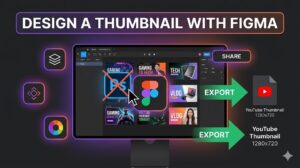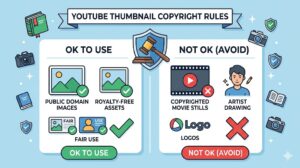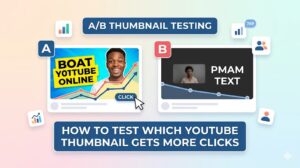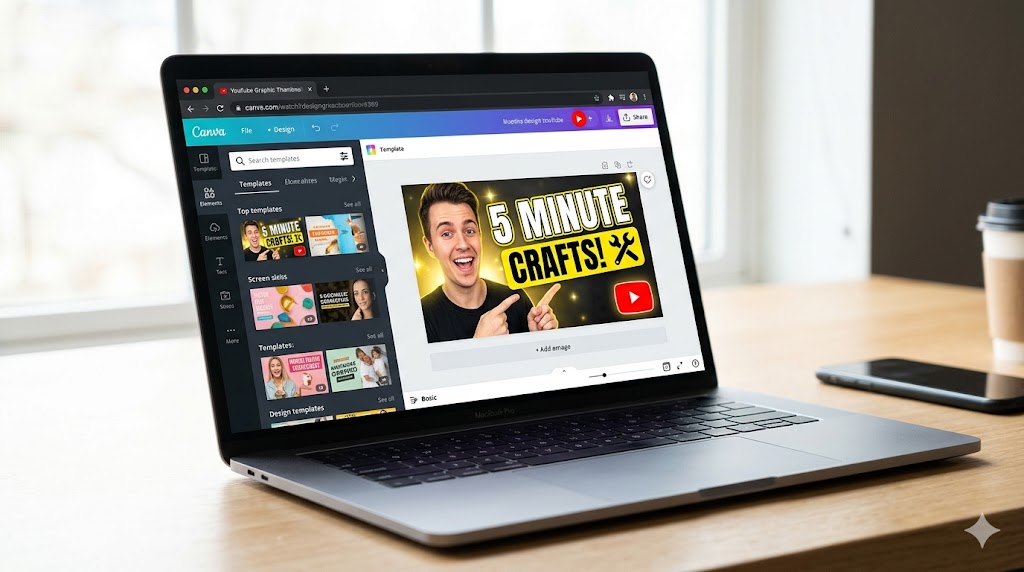
Creating eye-catching thumbnails is one of the most important parts of growing a successful YouTube channel. A strong thumbnail can increase clicks, improve branding, and make videos stand out in crowded search results. This canva youtube thumbnail tutorial will show you how to design professional thumbnails quickly, even if you have no graphic design experience. By following this canva youtube thumbnail tutorial, you’ll learn how to use templates, customize visuals, and optimize thumbnails for better performance.
Why Use Canva for YouTube Thumbnails?
Canva has become one of the most popular design tools for creators because it is beginner-friendly and powerful at the same time. A proper canva youtube thumbnail tutorial helps creators save time while producing professional-looking graphics.
Benefits of Canva
- Easy drag-and-drop interface
- Thousands of templates
- Free design elements
- Cloud-based editing
- Mobile and desktop support
These features make Canva an excellent youtube thumbnail creator for creators at all skill levels.
Tip: Consistent thumbnail styles help build stronger channel branding over time.
How to Start a Canva YouTube Thumbnail Tutorial Project
The first step in this canva youtube thumbnail tutorial is setting up your design properly.
Create a Canva Account
Visit Canva and create a free account if you don’t already have one.
Select the Correct Thumbnail Size
Search for “YouTube Thumbnail” in Canva templates.
- Recommended size: 1280 x 720 pixels
- Aspect ratio: 16:9
Using the correct size ensures your canva youtube thumbnail tutorial project displays correctly across devices.
Canva YouTube Thumbnail Template Tutorial
Templates are one of Canva’s strongest features. A good canva youtube thumbnail template tutorial helps beginners create attractive designs quickly.
How to Choose Templates
- Select templates matching your niche
- Look for bold text layouts
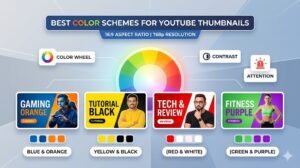
- Choose high-contrast color schemes
- Avoid cluttered designs
Customize the Template
After selecting a template:
- Replace placeholder text.
- Upload your own images.
- Adjust colors to match branding.
- Resize elements if necessary.
This process is a key part of every effective canva youtube thumbnail tutorial.
Essential Canva YouTube Thumbnail Tips
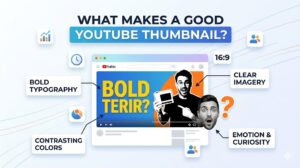
Design quality matters. These canva youtube thumbnail tips can help improve click-through rates.
Use Large, Bold Text
Viewers should read text clearly on mobile screens.
Highlight Faces and Emotions
Human expressions attract more attention.
Use Contrasting Colors
Bright text on dark backgrounds often performs well.
Keep Layouts Simple
Too many elements reduce clarity.
Applying these canva youtube thumbnail tips will improve the overall quality of your designs.
Special Attention: Always preview thumbnails at smaller sizes to ensure readability on mobile devices.
Adding Images and Graphics in Canva
An important part of this canva youtube thumbnail tutorial is understanding how to use images effectively.
Upload Custom Photos
Use high-quality personal photos whenever possible.
Use Canva Elements
Canva offers:
- Shapes
- Icons
- Backgrounds
- Frames
- Effects
Remove Backgrounds
Canva Pro includes background removal tools for cleaner designs.
These features make Canva a flexible youtube thumbnail maker for creators.
How to Create Strong Thumbnail Branding
Brand consistency is critical in any canva youtube thumbnail tutorial.
Choose Consistent Fonts
Use the same font styles across videos.
Maintain Color Consistency
Repeated color palettes strengthen recognition.
Add Subtle Logos
Branding should support the design without overwhelming it.
Strong branding improves channel identity and viewer trust.
Using Canva as a YouTube Thumbnail Creator
Many creators use Canva as their primary youtube thumbnail creator because it balances simplicity with advanced design tools.
Why Canva Works Well
- Fast editing process
- Cloud storage access
- Team collaboration features
- Easy resizing options
For beginners following a canva youtube thumbnail tutorial, Canva provides an ideal starting point.
Analyze Successful Thumbnails for Inspiration
Studying successful thumbnails can improve your design skills.
What to Analyze
- Text placement
- Facial expressions
- Color combinations
- Visual hierarchy
You can use thumbnailget.com to save and study public thumbnails from popular creators. This complements any canva youtube thumbnail tutorial by helping you identify effective design trends.
Tip: Build a reference folder of successful thumbnails to improve future Canva designs.
Common Canva Thumbnail Mistakes
Overcrowded Layouts
Too many elements confuse viewers.
Weak Contrast
Low-contrast text becomes unreadable.
Small Fonts
Mobile viewers may struggle to read text.
Too Many Colors
Limit your palette for cleaner designs.
Avoiding these issues is essential in every canva youtube thumbnail tutorial.
Exporting and Uploading Your Thumbnail
After finishing your design, export the image correctly.
Recommended Export Settings
- Format: PNG or JPG
- High quality enabled
- Under 2MB file size
Upload to YouTube
- Open YouTube Studio.
- Select your video.
- Click Upload Thumbnail.
- Select your Canva export.
- Save changes.
This final step completes the canva youtube thumbnail tutorial workflow.
Conclusion
This canva youtube thumbnail tutorial shows how creators can design professional thumbnails quickly using templates, branding strategies, and visual optimization techniques. From selecting the right dimensions to applying canva youtube thumbnail tips, every step contributes to stronger click-through rates and better channel branding. Canva remains one of the most accessible tools for creators who need a reliable youtube thumbnail maker. For additional inspiration and thumbnail research, creators can also use thumbnailget.com to study successful public thumbnails. Mastering this canva youtube thumbnail tutorial can help your channel stand out in a highly competitive platform.